latest version
2.0.0

A simple command-line utility that appends dimensions to image and video filenames. Available for Windows, macOS, and Linux. Completely free.
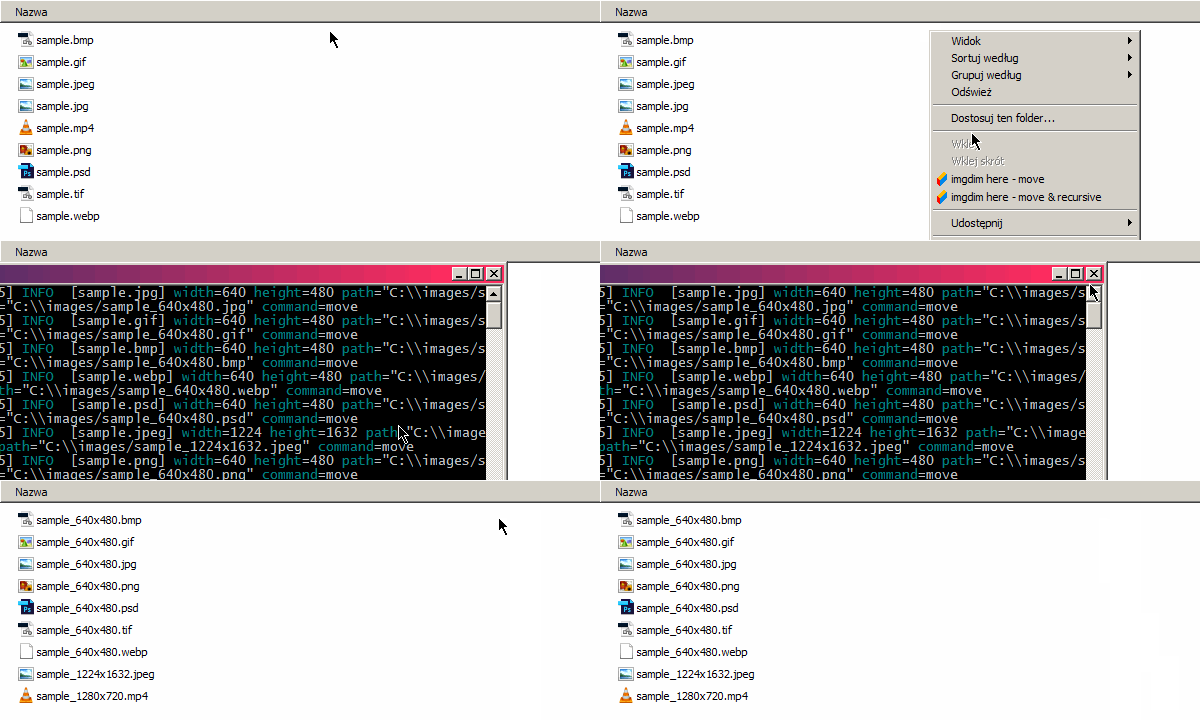
Registration is required in order to get free license to use imgdim on your machine. Follow these easy steps:
$PATH
-
https://en.wikipedia.org/wiki/PATH_(variable)
.
imgdim link YOUR_USERNAME YOUR_PASSWORD
list
command (shorthand
ls
) displays dimensions for supported files inside current directory by
default:
root@localhost:~/images# imgdim list
[2018-05-02 20:26:02] INFO  [sample.bmp] width=640 height=480 path=/root/images/sample.bmp new_path=/root/images/sample_640x480.bmp command=list
[2018-05-02 20:26:02] INFO  [sample.gif] width=640 height=480 path=/root/images/sample.gif new_path=/root/images/sample_640x480.gif command=list
Files without proper extensions are also detected:
root@localhost:~/imageswoextension# ls
sample1  sample2
root@localhost:~/imageswoextension# imgdim list
[2018-05-02 20:26:02] INFO  [sample1] width=640 height=480 path=/root/imageswoextension/sample1 new_path=/root/imageswoextension/sample1_640x480 command=list
[2018-05-02 20:26:02] INFO  [sample2] width=640 height=480 path=/root/imageswoextension/sample2 new_path=/root/imageswoextension/sample2_640x480 command=list
Sub-directories are not processed by default but you can pass
--recursive
option (shorthand
-r
) to change that:
root@localhost:~/images# imgdim list --recursive
[2018-05-02 20:26:02] INFO  [sample.bmp] width=640 height=480 path=/root/images/sample.bmp new_path=/root/images/sample_640x480.bmp command=list
[2018-05-02 20:26:02] INFO  [sample.gif] width=640 height=480 path=/root/images/sample.gif new_path=/root/images/sample_640x480.gif command=list
[2018-05-02 20:26:02] INFO  [sample.psd] width=640 height=480 path=/root/images/website/sample.psd new_path=/root/images/website/sample_640x480.psd command=list
You can also pass list of directories or files to process as arguments:
root@localhost:~/images# imgdim list sample.bmp /some/other/dir
[2018-05-02 20:26:02] INFO  [sample.bmp] width=640 height=480 path=/root/images/sample.bmp new_path=/root/images/sample_640x480.bmp command=list
...
You may find
--json
option (shorthand
-j
) convenient if you would like to machine-process program output:
root@localhost:~/images# imgdim list --json sample.bmp
{"command":"list","height":480,"level":"info","msg":"[sample.bmp]","new_path":"/root/images/sample_640x480.bmp","path":"/root/images/sample.bmp","time":"2018-05-03T16:39:00Z","width":640}
--json
and
--recursive
options can be also used with
move
and
copy
commands.
move
command (shorthand
mv
) will be probably most frequently used one. It actually renames the
files by appending dimensions:
root@localhost:~/images# ls
sample.bmp  sample.gif
root@localhost:~/images# imgdim move
[2018-05-02 20:26:02] INFO  [sample.bmp] width=640 height=480 path=/root/images/sample.bmp new_path=/root/images/sample_640x480.bmp command=move
[2018-05-02 20:26:02] INFO  [sample.gif] width=640 height=480 path=/root/images/sample.gif new_path=/root/images/sample_640x480.gif command=move
root@localhost:~/images# ls
sample_640x480.bmp  sample_640x480.gif
You can customize how new filename will look like with
--template
option (shorthand
-t
):
root@localhost:~/images# imgdim move --template "{name}-{width}-{height}{extension}"
[2018-05-02 20:26:02] INFO  [sample.bmp] width=640 height=480 path=/root/images/sample.bmp new_path=/root/images/sample-640-480.bmp command=move
[2018-05-02 20:26:02] INFO  [sample.gif] width=640 height=480 path=/root/images/sample.gif new_path=/root/images/sample-640-480.gif command=move
root@localhost:~/images# ls
sample-640-480.bmp  sample-640-480.gif
copy
command (shorthand
cp
) works similar to move command but it creates copies with
dimensions appended so source files are not deleted:
root@localhost:~/images# ls
sample.bmp  sample.gif
root@localhost:~/images# imgdim copy
[2018-05-02 20:26:02] INFO  [sample.bmp] width=640 height=480 path=/root/images/sample.bmp new_path=/root/images/sample_640x480.bmp command=copy
[2018-05-02 20:26:02] INFO  [sample.gif] width=640 height=480 path=/root/images/sample.gif new_path=/root/images/sample_640x480.gif command=copy
root@localhost:~/images# ls
sample.bmp  sample_640x480.bmp  sample.gif  sample_640x480.gif
link
command (shorthand
ln
) links
imgdim
installation to your account:
root@localhost:~/images# imgdim link YOUR_USERNAME YOUR_PASSWORD
[2018-05-02 20:26:02] INFO  [installation linked successfully]
If your password contains spaces, surround it with double quotes.
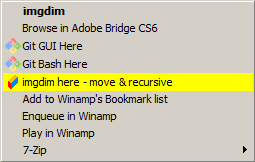
If you are using Windows operating system you may add
imgdim
shortcuts to right-click context menu. Just run
imgdim.exe install
(shortcut
in
) and interactive installer will let you pick which shortcuts to add. To uninstall installed shortcuts run
imgdim.exe uninstall
(shortcut
un
).
| Format | Extension | MIME |
|---|---|---|
| Joint Photographic Experts Group | jpg | image/jpeg |
| Portable Network Graphics | png | image/png |
| Graphics Interchange Format | gif | image/gif |
| Bitmap Image File | bmp | image/bmp |
| Tagged Image File Format | tif | image/tiff |
| WebP | webp | image/webp |
| Photoshop Document | psd | image/vnd.adobe.photoshop |
Range of supported video formats depends on the type of third-party executable installed.
imgdim
alone cannot detect video files dimensions (yet). It requires
one of the following executables installed and available in
$PATH
:
| Executable | Website |
|---|---|
| ffprobe | https://www.ffmpeg.org/download.html |
| mediainfo | https://mediaarea.net/pl/MediaInfo/Download (CLI version) |
| exiftool | https://www.sno.phy.queensu.ca/~phil/exiftool/ |
All above tools are free. Please refer to linked websites for installation instructions for your operating system.